
The first time you set this up, you’ll go through a few simple steps. It shouldn’t take more than 5–10 minutes—often less if you’re already familiar with installing APKs on your headset.After that, testing is instant. You’ll simply open the tester on your headset and select your application—no additional setup required.
Step 1: Download SimpleXR Tester APK
Download the tester APK by going to the “Test App” button on the top right of the page while you have your SimpleXR application open. Click “Download Tester”, this will start the download of the tester APK that you will install on your headset in the following step.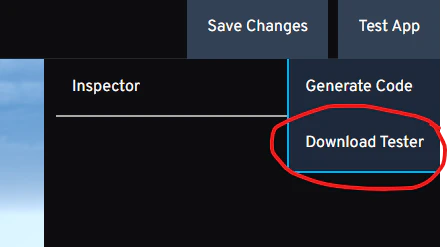
Step 2: Install the APK on your Quest headset.
This can be done with either the Meta Quest Developer Hub or **SideQuest **apps. Both will result in the same outcome and do the same thing: Install an APK (android application format) on your headset. If you haven’t done this before, you will need to do a few things to make sure this works:- Make sure you have a Meta Developer Account. If not you will need to create one and add it to an organization (you can create an org when you create your account, very simple and the platform will likely guide you). If you already have a Meta account which you used to login to your Quest VR Headset, then you can use that one for making a Meta Developer Account.
- Download Meta Horizon mobile app. Using the mobile app, login with the developer account you created. Make sure your Quest headset is using the same account as the one with your Meta Developer Account and your headset is on. On the mobile app, select your device, go to its settings, and enable developer mode.
- Finally, connect your headset to your computer, and use either Meta Quest Developer Hub or SideQuest to install the tester APK.
- On Meta Quest Developer Hub, you can just drag and drop the APK onto it while headset is connected, and it will install it for you.
Step 3: Open the tester and sync with your account.
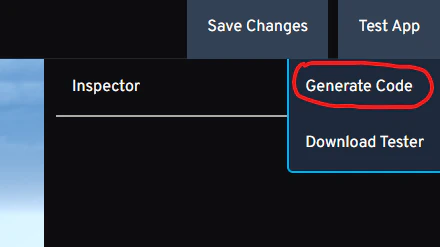
After installation, the SimpleXR Tester app will be on your headset in your apps library, under “Unknown Sources”. This is where all APKs that are not installed from the Meta Store go. We are working on getting the SimpleXR tester on the Meta Quest store to simplify this process, but this will come later. Once you open the tester, use the code you get from your simplexr.net app under the “Generate Code” section to sync your headset with your SimpleXR account (This is only done once and your account will be remembered everytime you login).- Generate Code
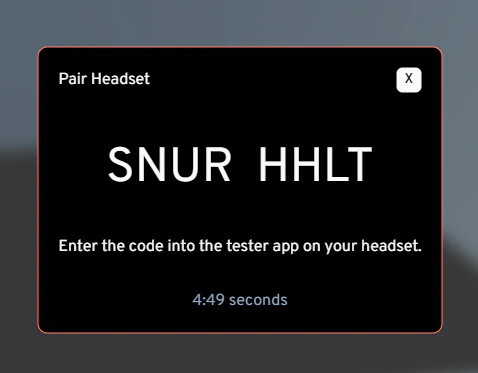
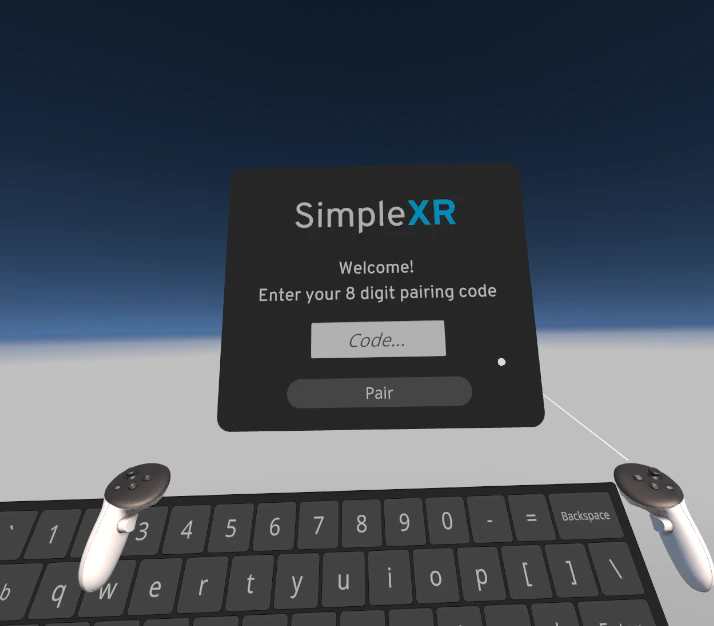
- Put the 8 digit code into the tester app (no spaces).
Step 4: Select the app you’d like to test! 🎉
Congrats, your setup is complete. You can now create XR apps, make changes, and test it out in seconds.Testing Tips: Once you’re in your app in the headset, you can press the ‘Y’ button on your left controller to display a menu. This menu enables you to go back to the list of apps, so you can refresh your app after you made a change, or test a different one. You can also move the player around and rotate using your controllers. Try it out!